How to Bulk Import Quizzes Using Google Sheets (Step-by-Step Guide)
This guide will walk you through creating a new Google Sheet for bulk quiz import.
1. Create a New Google Sheet
First, you'll need a new Google Sheet.
- Go to Google Sheets and create a new blank spreadsheet.

2. Rename the Sheet
It's crucial to name your sheet correctly for synchronization.
- At the bottom of the new spreadsheet, you'll see a tab usually named "Sheet1". Double-click on this tab.
- Rename it to Questions. Make sure the name is exact, letter for letter.

3. Share the Google Sheet
Now, you'll share the sheet with the necessary accounts, granting them editor access. This allows the synchronization process to work.
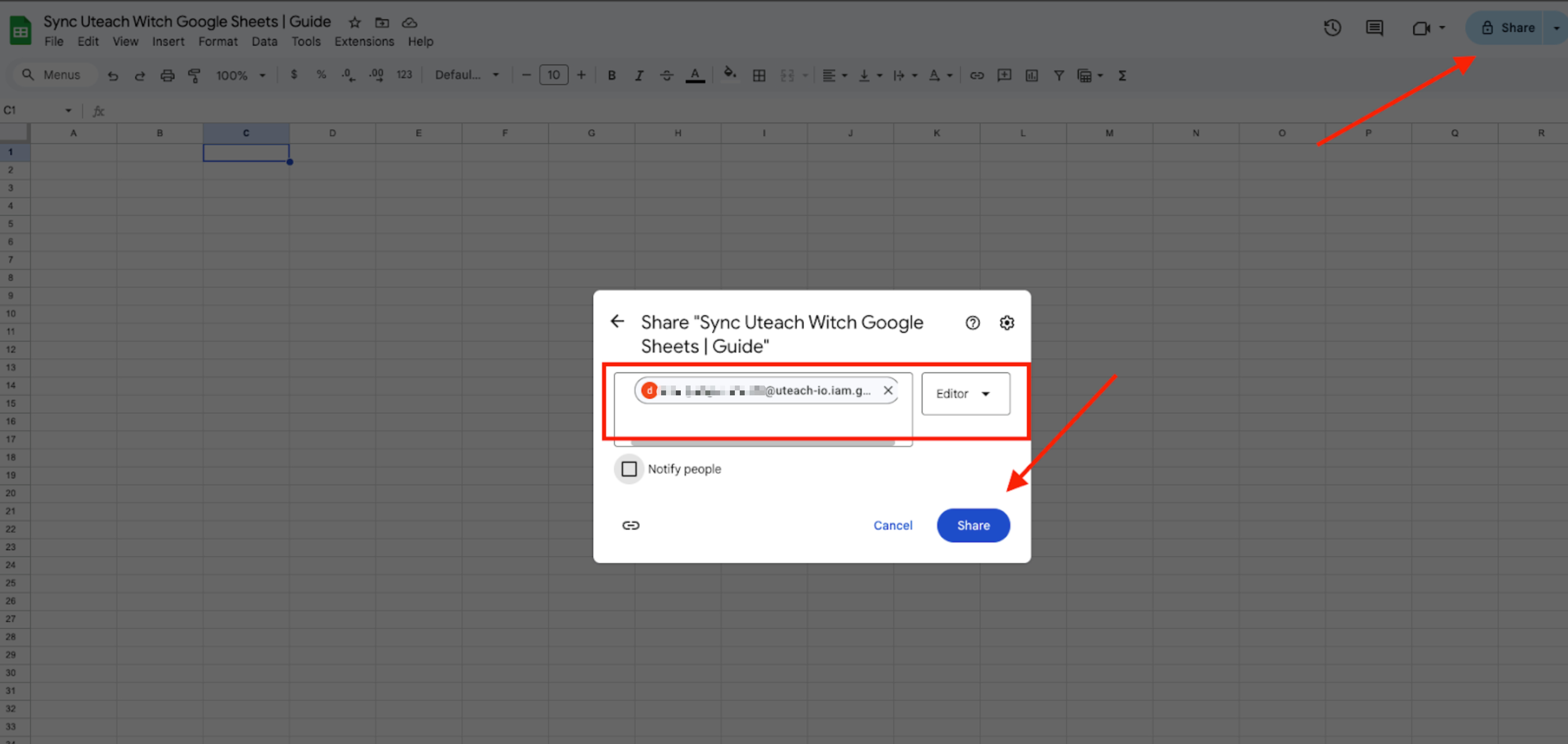
- In the top right corner of your Google Sheet, click the Share button.
- In the "Share with people and groups" box, add the following email address one by one, ensuring you set the permission to Editor:
- For development: [email protected]
- For live: [email protected]
- Click Done when finished.
4. Copy the Sheets ID
The Sheets ID is a unique identifier for your spreadsheet, which you'll need for the next step.
- Look at the URL of your Google Sheet in your web browser.
- The Sheets ID is the long string of characters located between /d/ and /edit.
- Example URL: https://docs.google.com/spreadsheets/d/1aoi8kU6i_2DacJ3OZpu4wEKvKgfrC7KLczKa4wDypUw/edit#gid=0
- Copy only this ID. Do not include any other parts of the URL.

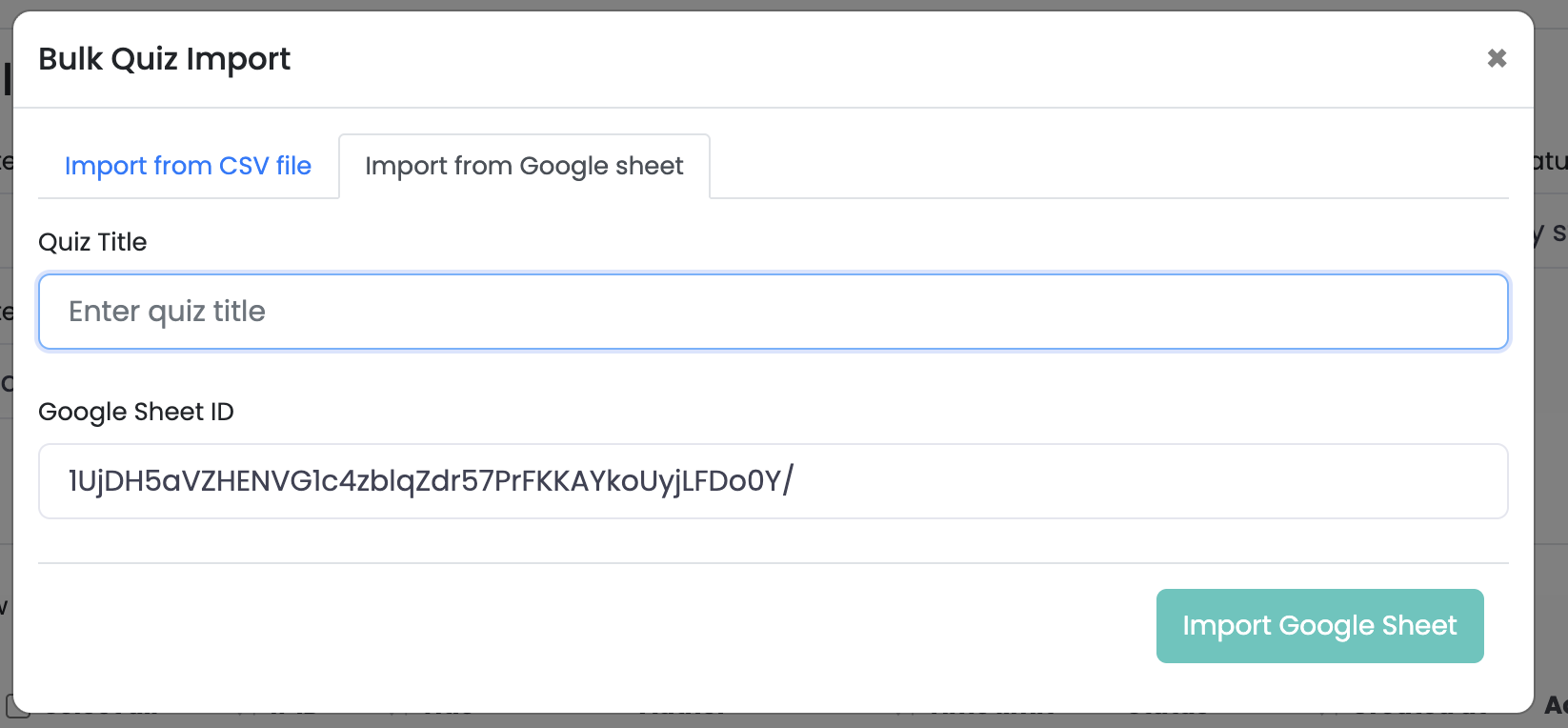
- Add your Quiz Title
- Paste the Sheets ID you copied in the previous step into the designated field.
- Click the Import Google Sheet to confirm.
Author
![{"id":2,"user_id":25,"slug":"lusine-mkhitaryan","full_name":"Lusine Mkhitaryan","position":"Customer Support Specialist","tagline":"Customer Support Specialist","image":"uteach\/authors\/LxVlxPVHH6bKnNI51DR8-1743576946\/t02qfsy3cq2-u02u10sqk1q-727b0c81e36f-512.jpg","short_text":"I\u2019m a motivated Customer Support Specialist who thrives on making every customer experience smoother, more efficient, and more positive. \r\n\r\nI am dedicated to addressing customer needs with empathy, professionalism, and efficiency, always aiming to provide clear and effective solutions.\r\n\r\nMy approach emphasizes understanding the unique challenges customers face and finding creative ways to resolve them. I\u2019m passionate about streamlining support processes, optimizing workflows, and using innovative tools to deliver the best possible outcomes for customers.","education":"<ul><li>Bachelor's in English Language and Literature, Brusov State University\u00a0<\/li><li>Certified in Customer Service: Managing Customer Expectations<\/li><li>Certified in Innovative Customer Service Techniques<\/li><li>Certified in Working with Upset Customers<\/li><\/ul>","experience":"<ul><li>Customer Support Specialist at Uteach\u00a0<\/li><li>Digital Marketing Specialist at Munich Ventures\u00a0<\/li><li>Learning Platform Coordinator at WooChess\u00a0<\/li><li>E-commerce Administrator at Hafo.am\u00a0<\/li><li>Content Writer at Armenia Discovery<\/li><\/ul>","social_insta":null,"social_fb":null,"social_twitter":null,"social_linkedin":"https:\/\/www.linkedin.com\/in\/lusine-mkhitaryan","meta_title":"Lusine Mkhitaryan | Uteach Authors","meta_keywords":null,"meta_description":null,"json_ld":"{\r\n \"@context\": \"https:\/\/schema.org\",\r\n \"@type\": \"Person\",\r\n \"name\": \"Lusine Mkhitaryan\",\r\n \"jobTitle\": \"Customer Support Specialist\",\r\n \"worksFor\": {\r\n \"@type\": \"Organization\",\r\n \"name\": \"Uteach\",\r\n \"url\": \"https:\/\/uteach.io\"\r\n },\r\n \"alumniOf\": {\r\n \"@type\": \"EducationalOrganization\",\r\n \"name\": \"Brusov State University\"\r\n },\r\n \"hasCredential\": [\r\n {\r\n \"@type\": \"EducationalOccupationalCredential\",\r\n \"name\": \"Customer Service: Managing Customer Expectations\"\r\n },\r\n {\r\n \"@type\": \"EducationalOccupationalCredential\",\r\n \"name\": \"Innovative Customer Service Techniques\"\r\n },\r\n {\r\n \"@type\": \"EducationalOccupationalCredential\",\r\n \"name\": \"Working with Upset Customers\"\r\n }\r\n ],\r\n \"knowsAbout\": [\r\n \"Customer Support\",\r\n \"Workflow Optimization\",\r\n \"Support Automation\",\r\n \"Empathy in Service\",\r\n \"Conflict Resolution\"\r\n ],\r\n \"sameAs\": [\r\n \"https:\/\/www.linkedin.com\/in\/lusine-mkhitaryan\/\"\r\n ]\r\n}","created_at":"2025-01-24T16:10:14.000000Z","updated_at":"2025-04-24T22:38:45.000000Z"}](https://d35v9chtr4gec.cloudfront.net/uteach/authors/LxVlxPVHH6bKnNI51DR8-1743576946/t02qfsy3cq2-u02u10sqk1q-727b0c81e36f-512.jpg)